Image Resizer | Professional Toolkit

Image Resizer

Resize Your Images Instantly – Fast, Free & Online Without Losing Quality

Image Resizer Tool

Drag & Drop Your Image Here

or

PNG, JPG, JPEG • Max 100 MB
Preview

About This Tool

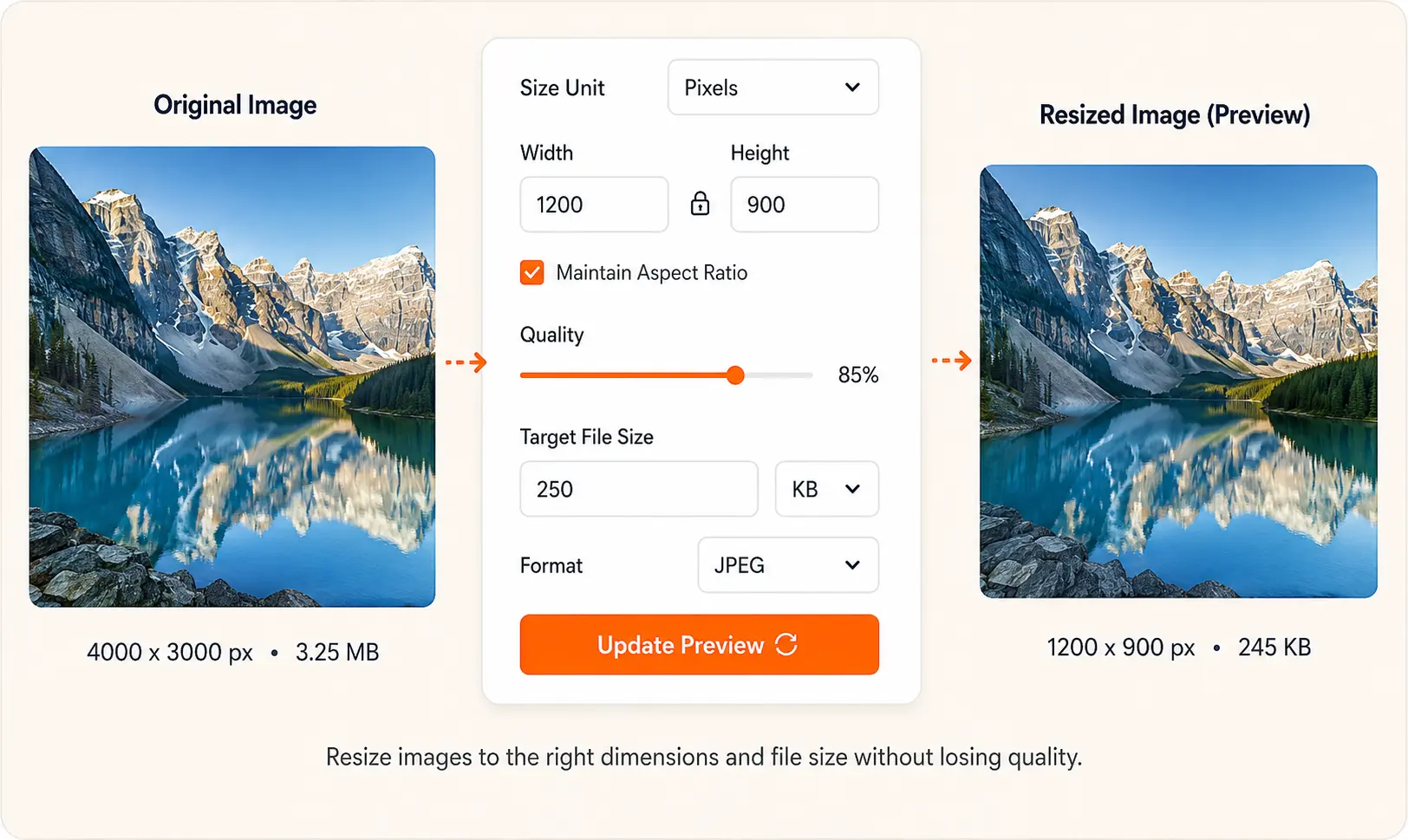
This Image Resizer Tool is designed to help you quickly resize, compress, and convert images without losing quality. Whether you need to reduce file size for web uploads, adjust dimensions for social media, or simply optimize your images for faster loading, this tool provides all the controls you need in one place.

💡 Pro Tip: Use the "Target File Size" feature to automatically adjust quality and dimensions to meet specific file size requirements.

Built with performance and simplicity in mind, the tool supports JPEG, PNG, and GIF formats, and offers precise control over resolution, aspect ratio, and background color.

How to Use

Follow these simple steps to resize your images:

  • Step 1: Upload your image using the drag & drop area or the "Browse Files" button.
  • Step 2: Choose your desired size unit (Pixels, Percentage, Inches, or Centimeters).
  • Step 3: Enter the new width and height, or use the percentage slider.
  • Step 4: Adjust quality, format, and resolution as needed.
  • Step 5: Click "Update Preview" to see the changes in real-time.
  • Step 6: Click "Download Resized Image" to save your optimized image.

The tool automatically maintains aspect ratio by default – simply uncheck the "Maintain Aspect Ratio" box for custom dimensions.

Key Features

  • 📐 Flexible Sizing: Resize by pixels, percentage, inches, or centimeters with precision.
  • 🎯 Target File Size: Automatically adjust quality to hit your desired file size.
  • 🖼️ Multiple Formats: Export as JPEG, PNG, or GIF with background color control.
  • 🔒 Aspect Ratio Lock: Maintain proportions while resizing with a single click.
  • ⚡ Real-Time Preview: See changes instantly before downloading.
  • 📱 Mobile Friendly: Fully responsive design works on all devices.
  • 🚀 No Uploads to Server: All processing happens in your browser – your images stay private.

Whether you're a web developer, social media manager, or casual user, this tool provides everything you need to optimize your images efficiently.

Frequently Asked Questions

Q: What image formats are supported?

A: The tool supports JPEG, PNG, and GIF formats for both input and output.

Q: Is my image uploaded to a server?

A: No. All processing happens locally in your browser. Your images never leave your device.

Q: What is the maximum file size I can upload?

A: The tool supports images up to 100 MB in size.

Q: How does the "Target File Size" feature work?

A: The tool automatically adjusts JPEG quality using a binary search algorithm to match your desired file size within a 5% tolerance, ensuring the best possible quality at the target size.

Q: Can I resize images for social media?

A: Yes! Use the pixel dimensions to match platform requirements (e.g., 1080×1080 for Instagram, 1200×630 for Facebook, etc.)

Q: Will the tool reduce image quality?

A: Quality is preserved at the highest level possible. You can adjust the quality slider (for JPEG) to balance file size and image quality according to your needs.

Get Started

Upload your first image above and experience the power of professional image optimization right in your browser. With real-time previews, precise controls, and zero server uploads, this tool is the perfect companion for your image editing workflow.

✨ Ready to resize? Drag and drop an image into the upload area above to get started.

For any questions or feedback, feel free to reach out. Happy resizing!

Canva Image Resizer & Image Resize Legacy Tool

Today, images are a key element in enhancing websites, blogs, social media, and overall business branding. But often, images are either too large to load quickly or not in the right dimensions. That’s where our Canva Image Resizer and Image Resize Legacy tool comes to the rescue. It allows you to resize, compress, and optimize images online without losing clarity.

About the Tool

Our online Image Resizer tool is designed to make resizing hassle-free. Whether you are preparing images for Instagram, Facebook, YouTube thumbnails, or blog banners, this Canva Image Resizer ensures that your images look sharp, professional, and optimized for the right platform.

How to Use the Image Resizer

  • Upload – Select or drag & drop your image.

  • Choose Size – Resize by pixels, %, inches, or cm.

  • Adjust – Pick format (JPEG, PNG, GIF) & quality.

  • Preview – Check the new size instantly.

  • Download – Save your resized image in one click.

Image Resizer, Canva Image Resizer, Image Resize Legacy
Resize images instantly 🖼️—no quality loss! Free, fast, and works for any platform.

Key Features & Benefits

  • Easy Upload: Drag & drop your image or select from your device.
  • Multiple Resize Options: Resize by pixels, percentage, inches, or centimeters.
  • High Quality: Adjust image quality from 1% to 100% without distortion.
  • Custom File Size: Set your target size in KB or MB with precision.
  • Multiple Formats: Save as JPEG, PNG, or GIF as per your needs.
  • Background Color: Add a custom background for PNG or GIF images.

Why Choose Us?

Unlike many online tools, our Image Resize Legacy system uses modern algorithms to preserve sharpness and colors. It is beginner-friendly, requires no professional editing skills, and works on all devices. Whether you are a blogger, designer, student, or business owner, this Canva Image Resizer is the perfect solution for quick and professional results.

Conclusion

Resizing images doesn’t have to be complicated. With our Canva Image Resizer and Image Resize Legacy tool, you can optimize pictures for faster loading websites, beautiful social media posts, and high-quality prints—all within seconds. Try it today and give your visuals the perfect size they deserve!

If You are Looking for more than just resizing? Try our new tools – Image Crop and Image Converter. With these, you can easily cut out unwanted parts of your photos or convert them into the format you need, all in just a few clicks.

Features

Perfect quality

"Top online tool to resize your pictures with great quality."

Lightning Fast

"This online tool can quickly resize your images and works for any size!"

Easy To Use

"Just upload your image and pick the size you want. It's that easy!"

100 % Free

we've made millions of images smaller for free! No apps to download, no sign-ups, and no logos added.

Frequently Ask Questions

Making an image smaller or bigger to fit websites, emails, or social media.

  • To make it smaller or fit where you need it.
  • To make images smaller or bigger for websites, emails, or social media so they load faster and fit better.

Use a good tool, keep the original ratio, pick the right format (like PNG for sharpness), and avoid enlarging small images too much.

  • Open the image in Preview.

  • Click Tools > Adjust Size.

  • Enter new width/height (keep “Scale proportionally” checked).

  • Click OK and Save.

Done! No quality loss if you only make it smaller.

→ PNG for quality (logos/text), JPEG for smaller files (photos).

Perfect Size, Every Time.

Unique CTA Button

Perfect Image Size for Web & Social – Start Resizing

Related Tools

Related Tools
Scroll to Top